A few days ago, I wanted to make my Arch Linux (btw) installation more secure and decided to enable secure boot. In the past, this has always been a bit of a pain to set up using manual hooks, which is why I refrained from doing so - up until now! Recently, a very handy tool called sbctl has emerged for making the entire process painless and automatic. I actually stumbled upon this because I tried out CachyOS, who have created a very nice guide for setting it all up.
Nevertheless, without giving you half my life story, here’s the quick version for you.
Setup
First, reboot into your UEFI firmware settings and put Secure Boot into Setup Mode. For my ThinkPad, this was at Security -> Secure Boot -> Reset to Setup Mode. Save your settings, exit the menu and boot into the OS as usual.
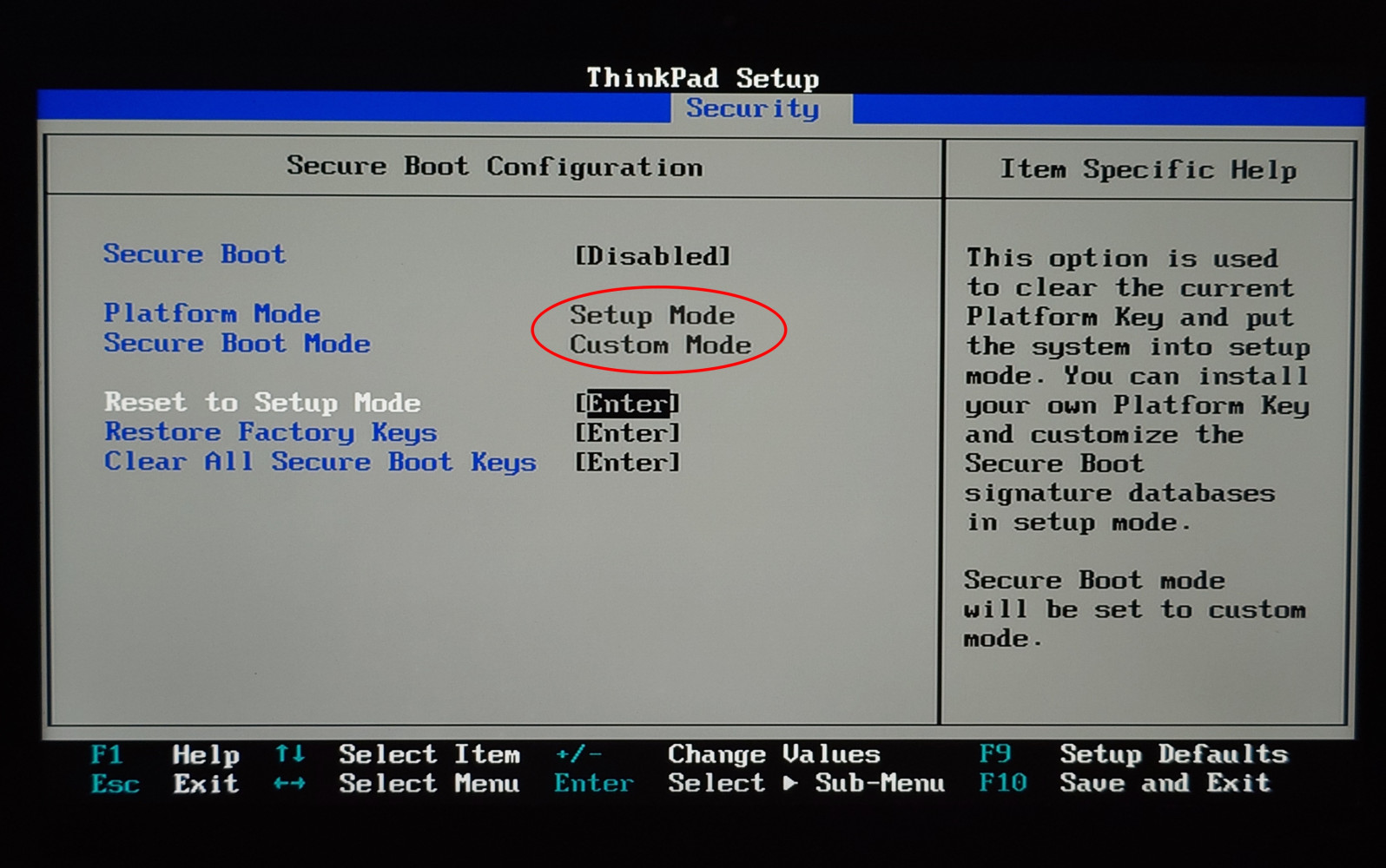
This is what you want. btw useless RED CIRCLE (you won’t believe what happens NEXT)
Now install sbctl. At the moment, there are official packages for Arch, Alpine, Gentoo, openSUSE and Fedora, but you may find more here.
This will also install the sbctl mkinitcpio post hook, which will automatically run whenever an image has been regenerated (i.e. when you install a kernel upgrade) to sign your kernel images.
Next, we create our secure boot keys.
user@machine ~> sudo sbctl create-keys
Created Owner UUID 4bd606de-edc3-4c88-a58c-baa05d6c0cf2
✓
Secure boot keys created!
Quick status check. Setup Mode should be Enabled and Secure Boot Disabled.
user@machine ~> sbctl status
Installed:      ✓ sbctl is installed
Owner GUID:     4bd606de-edc3-4c88-a58c-baa05d6c0cf2
Setup Mode:     ✗ Enabled
Secure Boot:	✗ Disabled
Vendor Keys:	microsoft
We install our generated keys and enroll the vendor keys at the same time (here: just microsoft but you might also have builtin-firmware).
user@machine ~> sudo sbctl enroll-keys --microsoft
Enrolling keys to EFI variables...
With vendor keys from microsoft...✓
Enrolled keys to the EFI variables!
Now we’re good on the Secure Boot setup front. Verify this with sbctl status. Setup Mode should’ve flipped to Disabled.
user@machine ~> sudo sbctl status
Installed:	    ✓ sbctl is installed
Owner GUID:	    4bd606de-edc3-4c88-a58c-baa05d6c0cf2
Setup Mode:	    ✓ Disabled
Secure Boot:	✗ Disabled
Vendor Keys:	microsoft
Signing
Finally, we have to initially sign all bootable EFI entries. First, check the current state (they will all show as not signed):
user@machine ~> sudo sbctl verify
Verifying file database and EFI images in /boot...
✗ /boot/EFI/BOOT/BOOTX64.EFI is not signed
✗ /boot/EFI/arch/fwupdx64.efi is not signed
✗ /boot/EFI/systemd/fwupdx64.efi is not signed
✗ /boot/EFI/systemd/systemd-bootx64.efi is not signed
✗ /boot/vmlinuz-linux-lts is not signed
Then, run this quick one-liner with elevated privileges to sign all unsigned entries:
user@machine ~> sudo sbctl verify | sed 's/✗ /sudo sbctl sign -s /e'
Verify the state:
user@machine ~> sudo sbctl verify
Verifying file database and EFI images in /boot...
✓ /boot/EFI/BOOT/BOOTX64.EFI is signed
✓ /boot/EFI/arch/fwupdx64.efi is signed
✓ /boot/EFI/systemd/fwupdx64.efi is signed
✓ /boot/EFI/systemd/systemd-bootx64.efi is signed
✓ /boot/vmlinuz-linux-lts is signed
Now we have to turn on Secure Boot for our machine. For this, reboot to the UEFI firmware settings again, head to the Secure Boot menu and put the Secure Boot setting to Enable (this might be called something else for you, but you’ll figure it out).
Finally, verify the status and enjoy your new level of security1:
user@machine ~> sudo sbctl status
Installed:      ✓ sbctl is installed
Owner GUID:     4bd606de-edc3-4c88-a58c-baa05d6c0cf2
Setup Mode:     ✓ Disabled
Secure Boot:    ✓ Enabled
Vendor Keys:	microsoft
sources
- https://wiki.archlinux.org/title/Unified_Extensible_Firmware_Interface/Secure_Boot#Assisted_process_with_sbctl
- https://wiki.cachyos.org/configuration/secure_boot_setup/
-
Okay actually…if you haven’t done so yet, you should also set a UEFI password to prevent an attacker with physical access from booting any unauthorized entries. Otherwise, an attacker could just simply briefly turn off Secure Boot to boot something here. ↩︎
